
Game Integration API
Game handling
The Game Handling APIs concerns creating and updating of game sessions, representing individual games/lobbies/matches inside your game. By only handling individual game sessions, you can support all ofChallengermode's competitive formats, including tournaments, cups and leaderboards.As a game developer, you're not required to know what competition a game session is a part of. Instead, regardless of competition type, the APIs are designed around management of only individual game sessions, represented by the GameSession object. You'll also find additional optional features in the API which can further improve the user experience, for example automating cancelling game sessions that are no longer needed.Most of the competition types on Challengermode requireChallengermode to be able to create game sessions and to retrieve results for them to be automated. Beyond that, there are optional capabilities that game developers can leverage to improve the player and organizer experience. If you're wondering what parts of the Game Handling APIs are necessary for your integration, you can find more information in the How to integrate section.
Note that before implementing the Game Handling APIs, you can still let users run competitions that are manually managed and reported by the users themselves or admins. You can read more about this in the section on user & admin reporting.
Concepts
Game sessions
Game session tags
State machine
 Good to know:
•
Provide a GameSessionId
A GameTag including a GameSessionId is required for all states after Creating.
•
Provide game results
A GameResult is required in the Finished state.
•
Optional states
Some states are optional to use in specific use cases:
•
Creating
The Creating state can be used when it takes a long time to create a game session. The
event
create-game-session event will be called until a game session with state Created or later is returned.•
Created
As soon as a game session is Created, players will be instructed to join the game and - if configured - have access to the "launch game" button described above to do so.
•
Starting
The Starting state depicts that the game session is currently starting which means that players may no longer join the game but aren't playing yet either. This state is rarely used, but may be helpful if starting the game can take a long time.
•
Cancelled
Game developers may report a game session as cancelled, for example if a game server crashed. Doing so will cancel the corresponding match onChallengermode, usually leading to another game session being created in its place.Only non-Finished game sessions may be cancelled.
•
Common transitions
The game session state machine is designed to be flexible to work with your existing state machine. While you may use all of the available states, • ➞ Created ➞ Started ➞ Finished or even • ➞ Started ➞ Finished may be sufficient for your game title.
Game results
•
Game result validation
When reporting game sessions, the game result is validated against the schema to ensure that the data is correctly formatted. .Read more about Report Game Session.
•
Scoring
The format itself is decoupled from the process of scoring, which uses the schema configuration to provide auto completion, or input fields for admin reporting.Read more about Scoring.
Game settings
event
create-game-session.Common use cases
•
Letting organizers customize games
The most common usage is to add game settings which allow organizers to customize the games by choosing e.g. the game modes, maps, hero pools, weather settings, etc.
•
Custom scoring
The game settings can be used in the scoring function, allowing to you handle custom scoring settings. For details, please refer to the advanced scoring section.
•
Pinning game versions
By including a game version as a hidden property on your game settings, they can be used to pin your game integrations to a certain version of the game.
Example game settings
{
	"$schema": "http://json-schema.org/draft-04/schema#",
	"title": "CustomGameSettings",
	"type": "object",
	"additionalProperties": false,
	"properties": {
		"gameMode": {
			"oneOf": [
				{
					"$ref": "#/definitions/GameMode"
				}
			],
			"default": 0
		},
		"victoryMode": {
			"oneOf": [
				{
					"$ref": "#/definitions/VictoryMode"
				}
			],
			"default": 0
		}
	},
	"definitions": {
		"GameMode": {
			"type": "integer",
			"default": 0,
			"description": "",
			"x-EnumDescriptions": [
				"Random Map",
				"Swamp",
				"Cursed Grounds"
			],
			"enum": [
				0,
				1,
				2
			]
		},
		"VictoryMode": {
			"type": "integer",
			"default": 0,
			"description": "",
			"x-EnumDescriptions": [
				"Standard",
				"Conquest"
			],
			"enum": [
				0,
				1
			]
		}
	}
}{
"gameMode": 1,
"victoryMode": 0
}Scoring
•
The results for each individual lineup:
{
	"lineupResults": [
		{
			"teamNumber": 1,
			"result": {
				"score": 1337
			}
		},
		{
			"teamNumber": 2,
			"result": {
				"score": 0
			}
		}
	]
}
•
And a default scoring function:
team.scoreUser & admin reporting
Advanced scoring
Scoring with lineup results
{
	"lineupResults": [
		{
			"teamNumber": 1,
			"result": {
				"roundsWon": 13
			}
		},
		{
			"teamNumber": 2,
			"result": {
				"roundsWon": 3
			}
		}
	]
}lineup score ← team.roundsWonScoring with Competitor results
{
	"competitorResults": [
		{
			"gameAccountReference": {
				"accountId": "Player 1"
			},
			"result": {
				"kills": 4 // omit or send null for no-shows
			}
		},
		{
			"gameAccountReference": {
				"accountId": "Player 2"
			},
			"result": {
				"kills": 2 // omit or send null for no-shows
			}
		}
	]
}competitors.Sum(it.kills)Scoring with both Lineup and competitor results
{
	"lineupResults": [
		{
			"teamNumber": 1,
			"result": {
				"roundsWon": 13
			}
		},
		{
			"teamNumber": 2,
			"result": {
				"roundsWon": 3
			}
		}
	]
}
{
"competitorResults": [
{
"gameAccountReference": {
"accountId": "Player 1"
},
"result": {
"kills": 4 // omit or send null for no-shows
}
},
{
"gameAccountReference": {
"accountId": "Player 2"
},
"result": {
"kills": 2 // omit or send null for no-shows
}
}
]
}team.roundsWon + competitors.Sum(it.kills)Scoring with general results
{
	"lineupResults": [
		{
			"teamNumber": 1,
			"result": {
				"roundsWon": 13
			}
		},
		{
			"teamNumber": 2,
			"result": {
				"roundsWon": 3
			}
		}
	]
}
{
"competitorResults": null
}{
"generalResults": {
"scoresShouldDouble": true
}
}global.scoresShouldDouble ? team.roundsWon * 2 : team.roundsWonScoring with custom game settings
{
	"gameSettings": {
		"gameMode": "KillRace"
	}
}
{
"lineupResults": [
{
"teamNumber": 1,
"result": {
"won": true
}
},
{
"teamNumber": 2,
"result": {
"won": false
}
}
]
}{
"competitorResults": [
{
"gameAccountReference": {
"accountId": "Player 1"
},
"result": {
"kills": 4 // omit or send null for no-shows
}
},
{
"gameAccountReference": {
"accountId": "Player 2"
},
"result": {
"kills": 2 // omit or send null for no-shows
}
}
]
}settings.gameMode == 'KillRace'
? competitors.Sum(it.kills)
: (team.won ? 1 : 0)Challengermode context
event
create-game-session event, the payload will always include a CmContext.Only the challengermodeGameId field is necessary to consider, as it should be used for idempotency when creating game sessions.
Platform configuration
device
launch-game or verifying a game account through device
verify-game-account.In your Application Dashboard, each intent has an associated "platform configuration" where you can configure each platform that can handle the intent. Each such configuration is a description of how the intent should be invoked on that platform.Steam
Browser
QR code
Android
iOS
Tesla
device
launch-game intent, you can add Steam as a platform and specify the deep link. This will allow Challengermode to invoke the configured deep link when the user clicks the "launch game" button in their match onChallengermode which corresponds to a game session:•
Supported platforms
Some platform presets have multiple supported platforms listed. This will determine which platforms this intent will be available on for the users browsingChallengermode.
•
Format
The format is the actual format that the intent will take. Think of it as a way to format the contents, the intent, and parameters so that it can be handled by that specific platform. In the case of deep links, the most common type of intent, the format will be the deep link itself. In some rarer use cases, notably the QR code intent scheme, the format can be any custom format that will then be encoded as a QR Code for users to scan.
•
Parameters
Each intent has a list of associated parameters which should be included in the configured intent scheme with a wildcard. For example, the
device
launch-game intent has the id parameter, which will be set to the game session ID when the intent is invoked.When configuring the intent, placeholders and descriptions will guide you to include the relevant parameters in the intent scheme format.Steam
Browser
Android
iOS
Tesla
QR code
Webhook configuration
event
create-game-session and event
get-game-session.Beyond the required ones, there are optional webhooks that can improve the player experience. For example, event
receive-event is used to notify you when an event has occurred on Challengermode, such as a tournament's confirmation period starting or a team winning a game on walkover. These can be used to notify players or provide contextual feedback.Each webhook can be configured separately in the relevant context within your Application Dashboard and will look like this:Note that all payloads include an action identifier to enable you to reuse one webhook for all available events, if preferred.
Supporting UX
•
Notify players about a game session's context
The CmContext in the
event
create-game-session call can be used to inform players about the context of the game session. For example, you may want to send a message to the players that the game session is part of a tournament and link to that tournament, either in your own client or in theChallengermodeclient.You can read more about theChallengermodeContext here.•
The events API
The
event
receive-event webhook can be helpful to inform players about relevant events in real-time, for example through in-game popups or notifications.Challengermode uses it to notify your backend when specific events occur in competitions for your game. For example, the TournamentReadyWindowOpened event can be used to inform players that have signed up to the respective tournament that the confirmation period has started.Components
Configuring scoring
Configuring game settings
event
create-game-session event whenever a game session is created.You can read more about configuring game settings in the section on game settings.Note that configuring game settings is optional. By default, the game settings are empty.
Create game session
event
create-game-session webhook. When that happens, the game backend should create a game session for the players and team composition provided in the event payload. This removes the need for either admins or players to manually report the outcome of each game.The game is not required to know what competition a game session is a part of. However, the payload includes a CmContext with that information, allowing you to provide additional information to the players in-game, if desired.
1
Parse game settings (optional)
If you have custom game settings configured, the game settings JSON will be provided as part of the CreateGameSessionPayload and will follow your configured game settings schema. For more information about configuring game settings for your game title, please refer to the game settings section.
2
Create the game session
Using the provided CreateGameSessionPayload, create a game session for the listed players and team composition.
•
Players and team composition
The competitors and lineups objects describe which players should be participating in the game and how they should be grouped into teams. Both these fields are provided for flexibility, allowing you to use either one of them to set up the teams.
The players are referenced by the immutable account IDChallengermodeobtained via the game account linking process.
•
Idempotency
The field ChallengermodeGameId should be used for idempotency. If you receive a request to create a game session with the same ID as a previous one, you should not create another game session.
3
Return the game session
When the session is created, map your internal game session model to a GameSession and return it.An example GameSession that's just been created will typically look like this:
{
	"state": 2, // Created
	"gameTag": {
		"GameSessionId": "unique-game-session-id"
	}
}
•
GameSession state
While the initial state of a GameSession is most commonly Created, there are multiple valid game states when returning the game session. Which one is most suitable will depend on the infrastructure of your game backend.Please refer to the game session state machine section for more information.
Challengermodewill call the create game session webhook continuously until it returns a game session with state Created or later.
•
GameTag
Challengermodeuses the GameTag to identify your game session. If applicable to your game, it may also contain lobby information to help players join the correct lobby. The GameTag is always required, unless the game session state is still Creating.
Challengermodewill call the create game session webhook continuously until a valid GameTag is returned. Make sure creating game sessions is idempotent to avoid creating duplicate game sessions.
Report game session
•
Implementing the get game session event
Implement the
event
get-game-session event to enableChallengermode to periodically poll game sessions created byChallengermode.•
Posting game sessions directly to Challengermode
Call the
post
game-session endpoint whenever your game session updates, especially when it finishes. Doing this is optional (except for ladder integrations) but enables Challengermodeto render scores and game stats in real-time.•
Game sessions use your internal IDs
When calling your
event
get-game-session webhook,Challengermode will use your internal game session ID that was returned as part of the GameTag in the response to the event
create-game-session event.•
Update the GameSessionState
Make sure to update the state to reflect the current status of the game session. The GameSessionState denotes if a game was created, started, finished, or cancelled and is used to reflect the same onChallengermode.To learn more about the different states, please refer to the game session state section below.
•
Game session results
When available, you may include a GameResult in your GameSession payload. This is required to score the game when it's finished and used to show the current score and game stats in real-time. The format of the GameResult must follow the custom schema you set up as part of the scoring configuration.Here is an example of a finished GameSession:
{
	"state": 5, // Finished
	"gameTag": {
		"GameSessionId": "unique-game-session-id"
	},
	"result": {
		"lineupResults": [
			{
				"teamNumber": 0,
				"resultJson": {
					"Score": 333
				}
			},
			{
				"teamNumber": 1,
				"resultJson": {
					"Score": 45
				}
			}
		]
	}
}
The example uses basic scores for all teams. This can be customized extensively to suit your specific game. To learn more about it, check out the scoring configuration section.
Launch game session
device
launch-game intent. If done, players will be presented with a "launch game" button within each match that, when pressed, will invoke the intent with the game session ID that was reported in the GameTag for that GameSession.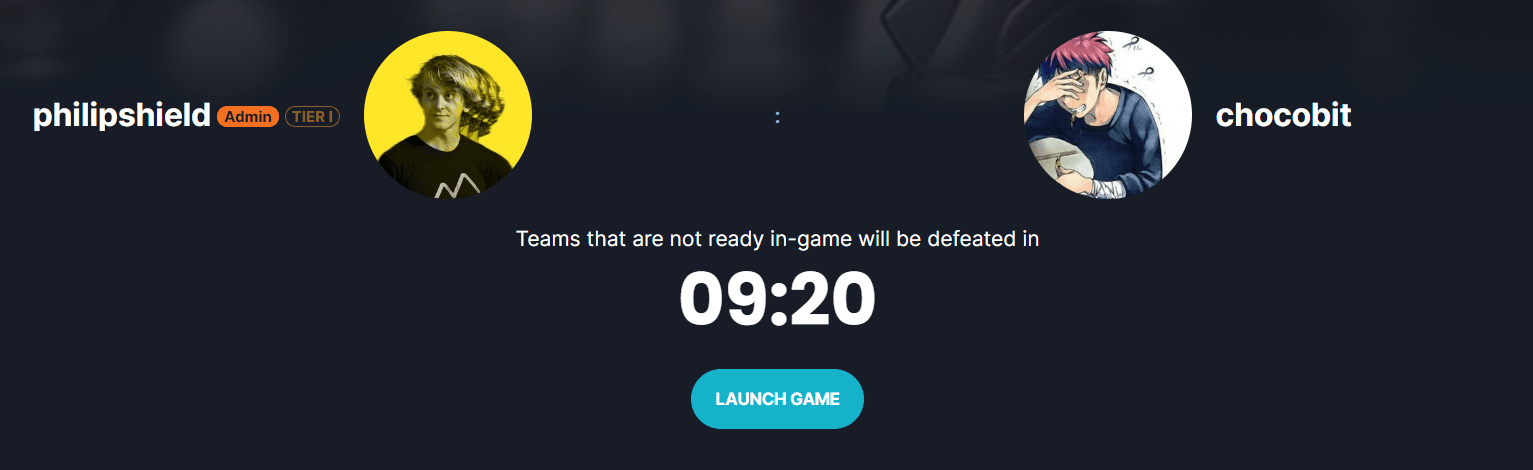
Cancel game session
Supporting game session cancellation is optional.
event
cancel-game event. For game developers that have implemented cancellation logic,Challengermode will send a request to cancel the respective game session including a CancelReason.The main scenarios in which Challengermodewill request to cancel a game are:•
Organizer cancels a game
On Challengermode, organizers have the option to cancel any game. They may use this for a variety of reasons, e.g. operations requiring to cancel and postpone the start of a game.
•
Organizer decides a game's outcome
Organizers may select the winner of a game at any time. This is useful in cases where a team wants to forfeit their game or has to leave for any reason. In any such case, the organizer may select a winner, leading to the game being resolved onChallengermode. When that happens,Challengermode will request to cancel the respective game session as it will no longer be needed.
•
Byes / walkovers / no-shows
Unless configured otherwise,Challengermode awards byes in case only one team shows up to their game within the specified go-to-game timer. When this happens, the game is resolved onChallengermode without it being played, resulting in a request to cancel the respective game session as it will no longer be needed.
Challengermode will never request to cancel a game that is already Finished.
•
Player experience
If game sessions are not cancelled when the organizer cancels them on Challengermode, there's a risk that players continue playing a game that no longer matters to the outcome of the competition, meaning the players are effectively wasting their time.
•
Organizer experience
Many games prevent players from being in two games at the same time. If an organizer cancels a game or manually selects a winner, they may have to wait for the players to finish or leave the initial, no longer relevant game before they can start the next one.
•
Cost savings & resource management
Cancelling ongoing games when requested frees up your resources when they are no longer needed.